Besides translating the text content into multiple languages, Kanzi enables you to use different resources for each locale, including textures, styles, fonts, meshes, animations, composers, and materials.
When you enable localization in your project, Kanzi Studio automatically adds all the text resources to the localization table. However, you have to manually add all other resources you want to localize. In this step of the tutorial you learn how to set up a Kanzi application to use different textures and meshes for each locale.
The Kanzi Studio project provided with this tutorial already contains the textures and meshes for each locale. You can find the textures in the Library > Materials and Textures > Textures, and meshes in the Library > Meshes. In this step you select which textures and meshes you want to use with which locale.
To localize other content:
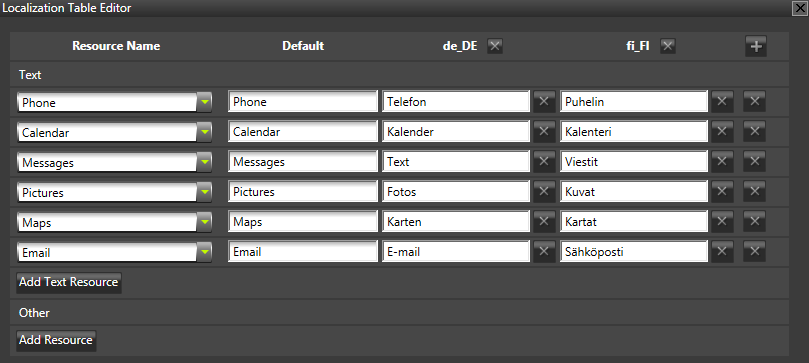
In the Library > Localization double-click the localization table Localization Table (Default). Localization Table Editor opens. In the Localization Table Editor you can add and edit text resources in your Kanzi application, add resources you want to localize, and select which locale uses which resource.
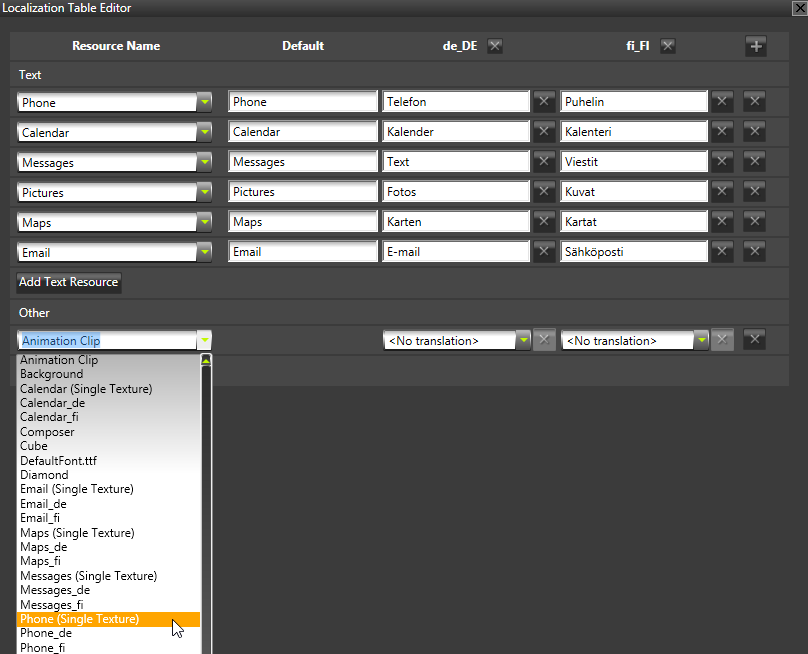
In the Localization Table Editor under Other click Add resource and select from the drop-down menu the Phone texture. Your Kanzi application uses this texture resource as the default resource for the Phone texture.
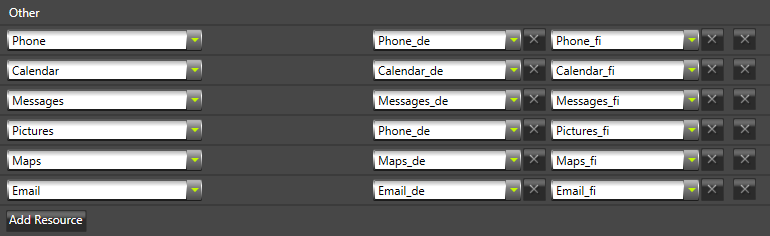
In the Localization Table Editor in the column for each locale select a texture you want to use for that locale. If you do not select a resource for a locale, Kanzi uses the default resource for that locale. For example, for the default texture resource select Phone, for de_DE locale (German), select Phone_de texture, and for fi_FI locale (Finnish), select Phone_fi.
Repeat the second and third step for all six icons in the Kanzi application for both locales, de_DE and fi_FI. When you complete this, the localization table in your Kanzi Studio project looks like this
In the Localization Table Editor under Other click Add resource and select from the drop-down menu Round mesh. Your Kanzi application uses this mesh resource as the default mesh resource.
In the Localization Table Editor in the column for each locale select a mesh you want to use for that locale. If you do not select a resource for a locale, Kanzi uses the default resource for that locale. For example, for de_DE select the Diamond mesh, and for fi_FI select the Cube mesh. Now when you change the locale, Kanzi uses different meshes and a different set of textures for each locale.
In this tutorial you learned how to localize Kanzi applications. To take this tutorial further, you can use the localization table .pot template to translate the content of this Kanzi application to additional languages. Additionally, you can create other resource types and create different resources for different locales. For example, create several animations and use each for a different locale:
Find out about all the details of localizing Kanzi applications. See Localization.